Losing your photos and videos from a trip hits really hard. One wrong click, a formatting error, or a sudden card glitch - and everything's gone. The fastest way to get those files back is to use recovery software. But with so many options, it's easy to waste hours on tools that won't deliver any results. So instead of guessing, here are five of the best SD card recovery tools that are actually worth trying.

A quick warning before we start: stop using the SD card right away. Every new file written to it reduces the chances of recovery. Also, you will need a computer and an SD card reader, so make sure you have both on hand.
What Matters Most When You Choose the SD Card Recovery Software For PC
Most SD card recovery software works similarly, so choosing between them comes down to what each tool actually offers in practice. A few criteria make this decision much simpler.
- Overall performance. Some tools will scan and list hundreds of files, but fail to restore usable content. What matters is how accurately the software reconstructs files under real-world conditions - reading raw sectors, recognizing file formats, and piecing them together even when the file system is partially damaged. Scan speed plays a role, too, especially on larger cards.
- Supported file formats. Travel photos and videos often go beyond JPG and MP4. Cameras use RAW formats like CR2 or NEF, and action cams produce larger video files. A good SD card recovery app should support both common and advanced formats, otherwise files may be missing or unusable after recovery.
- Ability to handle different data loss scenarios. Accidental deletion is the simplest case - most tools handle it. Formatted cards, logically corrupted cards, and cards that appear as RAW (unreadable) in Windows are harder to handle. Not every tool handles all three equally well.
- Ease of use. Most people who lose files on an SD card are not data recovery specialists. Clear navigation, simple controls, and file preview let anyone get through the process without prior experience.
- Price and value. Price matters, and what you get for it matters even more. Many tools offer free versions, but they usually come with strict limits. Always check what the tool is really capable of before committing.
- Extra features. Useful additions include video repair, disk backup, and file filtering. These often separate basic free recovery software for SD cards from more capable tools.
Quick Comparison Table of the Best SD Card Recovery Software
Just need to quickly choose a tool to recover SD card photos without reading the whole thing? Here's the table that gives a clear overview of the software mentioned in this article.
| Tool | Overall Rating | OS | Price | Free Version | Supported File Formats | Scenario Coverage | Recovery Success Rate | Ease of Use |
| Disk Drill | 5 (out of 5) stars | Windows, macOS | From $89 | Yes (100MB Windows / Preview macOS) | Very wide range (JPG, PNG, TIFF, MP4, MOV, RAW etc.) | Full | Very High | Very Easy |
| UFS Explorer | 4 (out of 5) stars | Windows, macOS, Linux | From $69.95 | Yes (256 KB / 768 KB per file) | Wide range, incl. RAW & video | Full | High | Hard |
| Ontrack EasyRecovery | 4 (out of 5) stars | Windows, macOS | From $59.99 | Yes (1GB limit, 25MB per file) | Common + partial RAW | Advanced | High | Easy |
| DiskGenius | 3 (out of 5) stars | Windows | From $69.99 | Yes (64KB per file) | Common + partial RAW | Advanced | Moderate | Medium |
| Recuva | 3 (out of 5) stars | Windows | $24.95 | Yes (unlimited basic recovery) | Common formats | Basic | Moderate | Easy |
5 Best Memory Card Recovery Software for Travel Photos & Videos
The tools below all aim to recover lost data from an SD card, but they differ in how easy they are to use and how well they handle more complex situations. Looking at them side by side makes it easier to understand which one suits you the best.
1. Disk Drill
Disk Drill SD Card Recovery is the most balanced option in this list. It combines strong recovery performance with a workflow that doesn't require technical knowledge. That combination is what makes it stand out, especially for travel photos and videos.
| Star Rating | 5 (out of 5) stars |
| OS | Windows, macOS |
| Price | From $89 per year |
| Free Version | Yes (on Windows up to 100MB recovery) |
| Supported File Formats | Common + RAW (CR2, CR3, NEF, ARW, RAF, RW2 and others), MXF, MTS, etc. |
| Pros | + Very easy to use + High recovery success rate + Advanced Camera Recovery for fragmented video files + Works with corrupted and RAW SD cards + Excellent file preview before recovery + Byte-to-byte backup for damaged cards + Clean and clear interface + Fast and consistent scan results + Supports a wide range of camera formats |
| Cons | - Not available on Linux - Not entirely free |
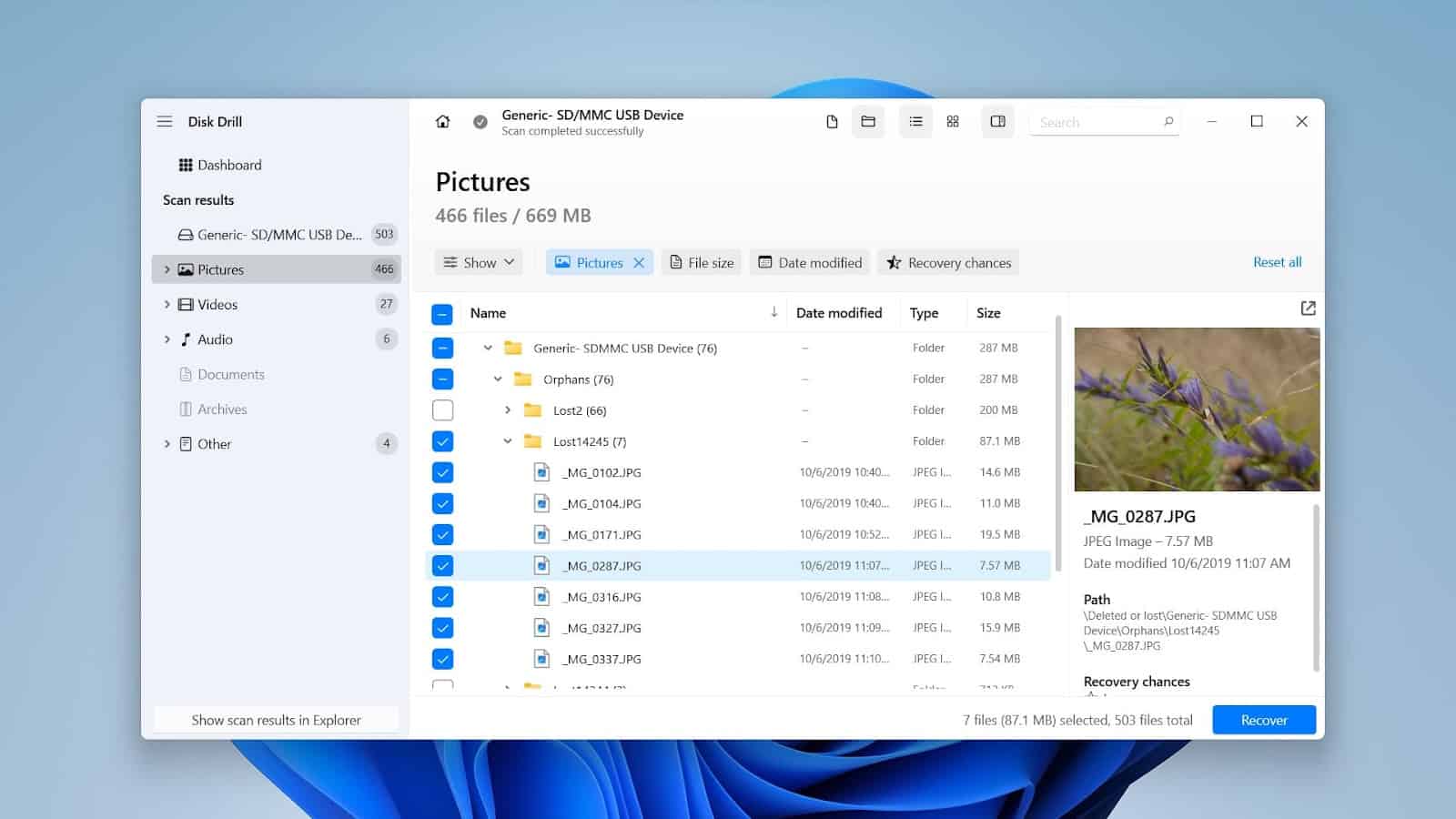
Disk Drill is the clearest example of a recovery tool that requires no technical background. The workflow is obvious from the start: select your SD card, run a scan, preview results, and recover what you need.
What stands out most is its handling of fragmented video files. Many tools struggle with long MP4 or MOV clips split across multiple card segments - they appear in the results, but playback is corrupted.
Disk Drill's Advanced Camera Recovery feature rebuilds these files by piecing the fragments back together in the correct sequence.
Format support covers 400+ file types, and it handles corrupted and RAW cards well. The byte-to-byte backup feature lets you create a disk image before touching the original - a smart move when the card is unstable.
The preview system is genuinely useful too. Before committing to recovery, you can view photos and even play back video clips to verify whether the file is intact.
The only limitation is the free recovery cap: 100 MB on Windows, and preview-only on macOS. That's still enough to test the tool and see exactly what's recoverable before spending anything.
For a large batch of photos and videos, though, you will likely need the paid version. That said, for most users dealing with a lost trip's worth of images, Disk Drill offers the best combination of power and accessibility.
2. UFS Explorer Standard Recovery
UFS Explorer is a strong choice for advanced users and complex cases, especially when the file system is damaged and preserving file structure matters. It focuses on precision over simplicity, though, so for quick, straightforward recovery, it may feel unnecessarily complicated.
| Star Rating | 4 (out of 5) stars |
| OS | Windows, macOS, Linux |
| Price | From $69.95 for unlimited use |
| Free Version | Yes (recovers files up to 256 KB only) |
| Supported File Formats | Common + RAW (CR2, NEF, ARW), custom formats (via signatures) |
| Pros | + High recovery accuracy in complex scenarios + Strong metadata preservation (file names, folder structure) + Advanced scan configuration options + Ability to scan specific disk areas + Suitable for damaged or partially readable SD cards |
| Cons | - Complex and technical interface - Steep learning curve - Slower workflow for basic tasks - Overwhelming for non-experts - Very limited free recovery |
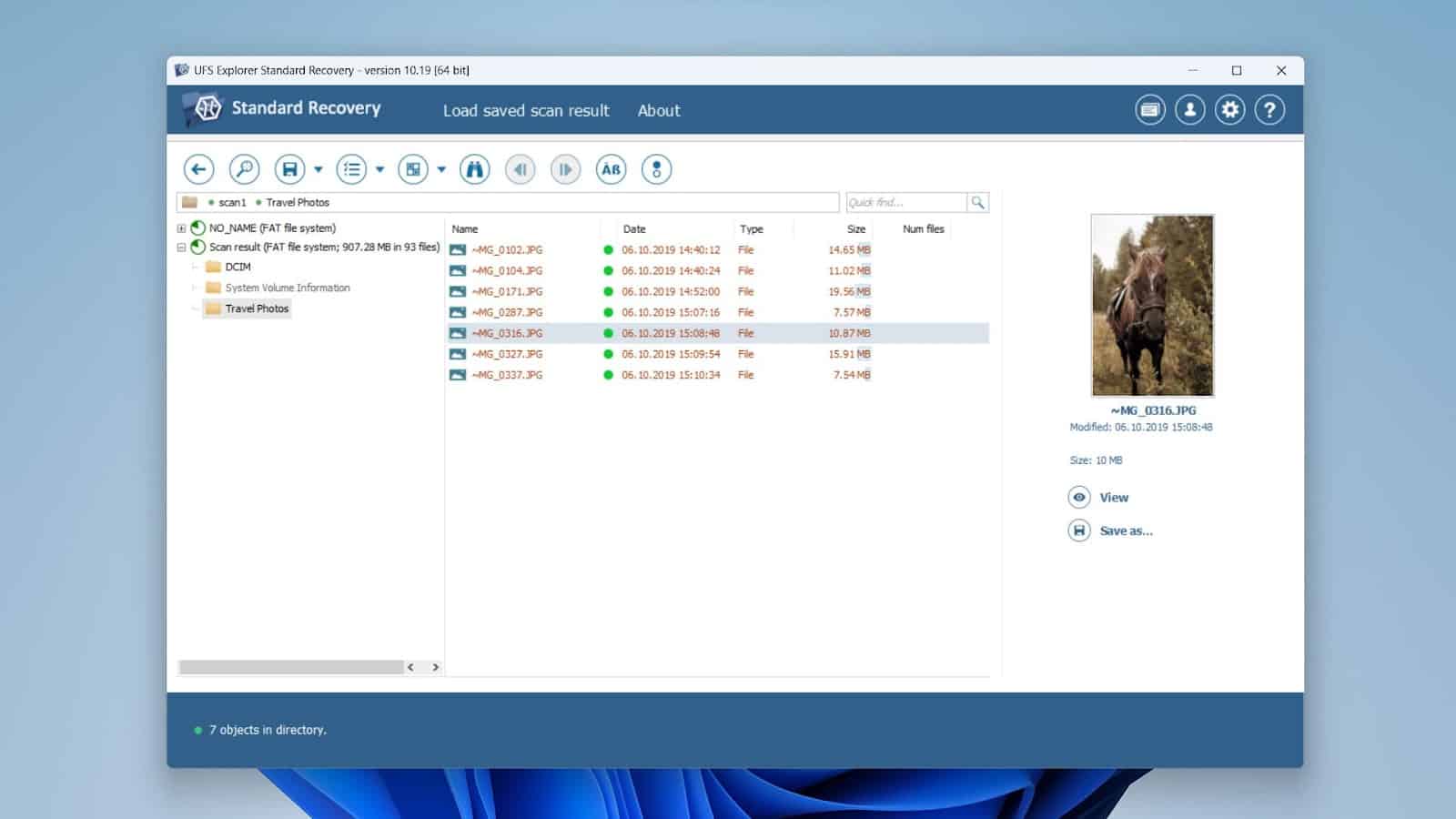
Unlike simpler tools, UFS Explorer gives you more control over the recovery process. You can adjust scan parameters, target specific areas of the SD card, and define custom file types. This is useful when working with unusual formats or partially corrupted data.
It also handles file system-based recovery well, often restoring folder structure and file names. That makes a big difference when recovering large photo collections, where sorting files manually would take hours.
That said, the interface isn't designed for quick use. It shows many options at once, and without prior experience, it's easy to feel overwhelmed. For a non-technical user who just needs their photos back, it may create more friction than results.
3. Ontrack EasyRecovery
Ontrack EasyRecovery works best when you want a balance between ease of use and capability. It's a solid option for everyday recovery tasks, but not the strongest choice for more complex cases or advanced video recovery.
| Star Rating | 4 (out of 5) stars |
| OS | Windows, macOS |
| Price | From $59.99 per year |
| Free Version | Yes (up to 1GB total recovery; max 25 MB per file) |
| Supported File Formats | Common + some RAW (CR2, NEF), HEIF |
| Pros | + Easy-to-use interface + Works in most common data loss scenarios + Includes media repair tools + Supports both simple and moderately complex cases + Well-structured scan results |
| Cons | - Slower scan speed compared to some tools - Less effective with fragmented video files - Advanced features locked behind higher tiers - Free version has file size recovery limits - No lifetime purchase option |
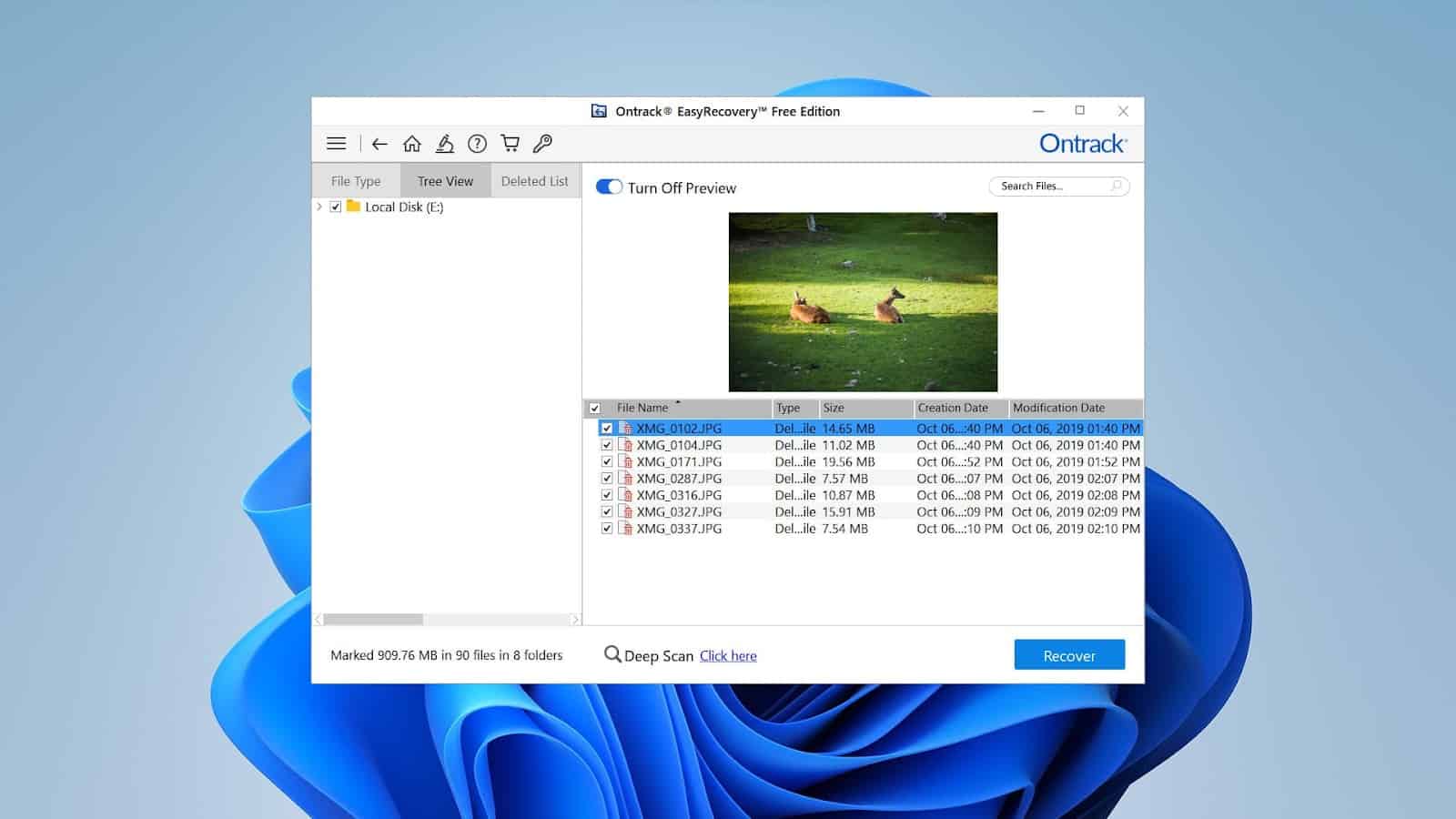
The software offers a clean, guided interface that walks users through the recovery process step by step and performs well across most common loss scenarios - accidental deletion, formatted cards, and some corruption cases.
One feature that sets it apart from simpler tools is its built-in media repair capability. In addition to recovering files, it can attempt to repair damaged photos and videos after recovery, which is useful when files come back partially corrupted. This makes it a reasonable pick for users who want recovery and basic repair in one place.
The downsides are mostly around performance and pricing. Scans tend to run slower than Disk Drill's, and the more advanced features, such as deeper scan modes and broader scenario coverage, are locked behind higher-priced tiers.
The subscription-based pricing model may also feel less attractive compared to a one-time purchase for occasional use.
4. DiskGenius
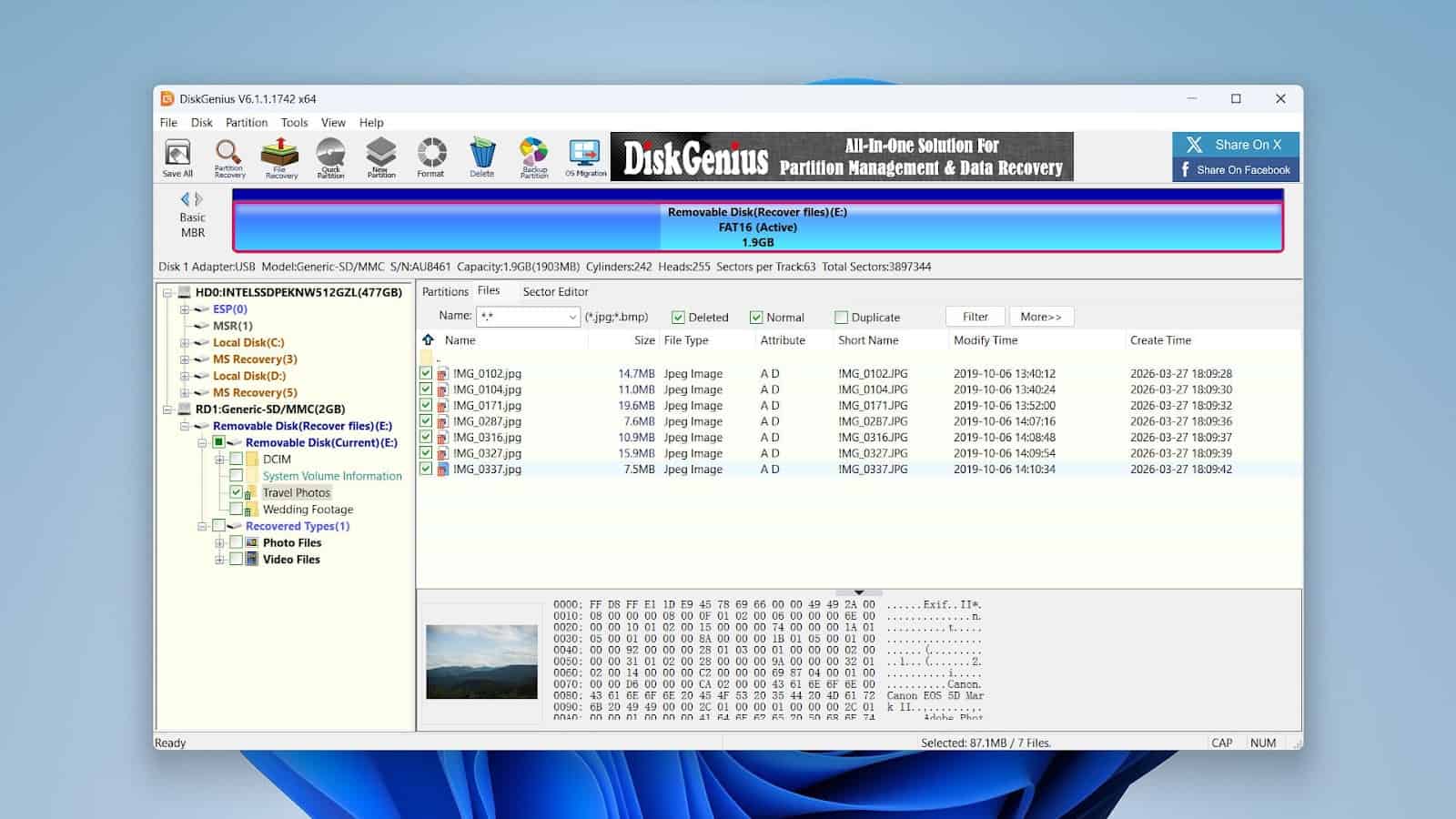
DiskGenius takes a slightly different angle. It combines SD card recovery software with disk management tools, making it more versatile but also harder to use.
| Star Rating | 3 (out of 5) stars |
| OS | Windows |
| Price | From $69.99 per month |
| Free Version | Yes (recovers files up to 64 KB each) |
| Supported File Formats | Common + Some RAW (CR2, NEF), limited support for advanced formats |
| Pros | + Combines data recovery with disk and partition tools + Useful for repairing file systems + Flexible scan options + Supports multiple file systems + Can recover lost partitions + Good for structured recovery scenarios |
| Cons | - The interface is less intuitive - Very limited free recovery size - Weaker performance with RAW photos and large videos - Not beginner-friendly - Inconsistent results in complex recovery cases |
DiskGenius is a hybrid tool that combines data recovery with partition management, disk repair, and other storage utilities. That makes it a genuinely useful option for users who need more than just file recovery in one place.
It handles partition recovery well, supports multiple file systems, and gives technically minded users a level of control that dedicated recovery tools typically don't offer.
For travel photo and video recovery, it's still a capable option, but not the most specialized one. Recovery results for RAW images and large video files can vary compared to tools designed specifically for media.
The interface also leans more toward system-level tasks, which may feel less intuitive if your goal is simply to restore photos.
The free version has a 64 KB per-file recovery limit, which is quite restrictive for most photo and video formats. In practice, it works better as a trial to check scan results rather than for full recovery.
5. Recuva
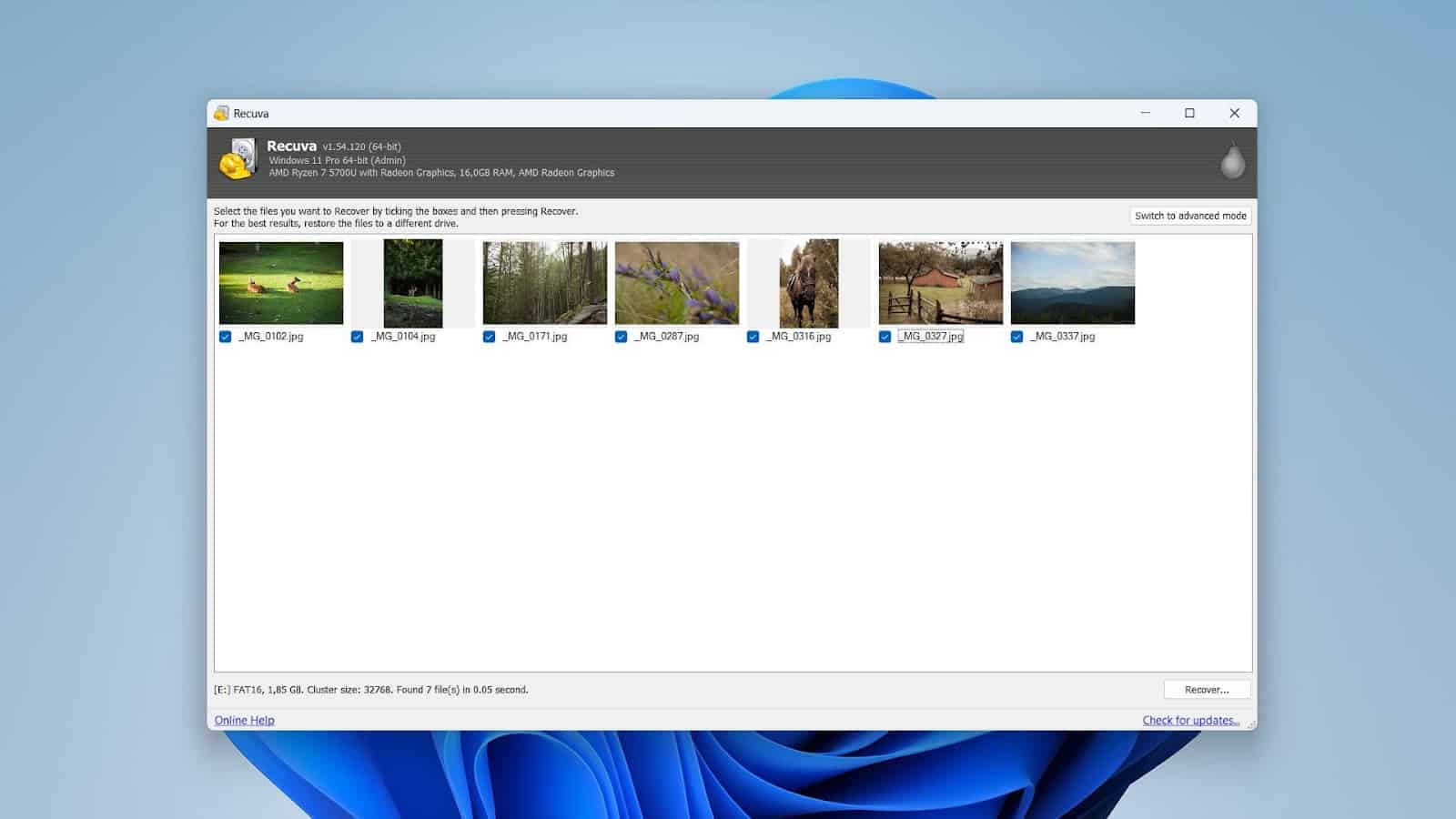
Recuva is one of the simplest tools in this list. It works best when files have been recently deleted, and the SD card is still in good condition. It's a solid starting point if you want free SD card recovery software, though more complex cases may require a more advanced tool.
| Star Rating | 3 (out of 5) stars |
| OS | Windows |
| Price | $24.95 per year (adds updates and support only) |
| Free Version | Yes (unlimited recovery) |
| Supported File Formats | Mostly common formats (JPG, PNG, TIFF, MOV, MPG, MP4, AVI etc.) |
| Pros | + Free recovery with no size limit + Lightweight and fast to install + Simple interface with guided wizard + Quick scan works well for recent deletions + Portable version available (no installation needed) |
| Cons | - Limited support for RAW and advanced formats - Weak performance on formatted or corrupted SD cards - No advanced recovery features - Basic preview capabilities - Interface feels outdated - Lower success rate in complex scenarios |
Recuva is one of the most widely downloaded recovery tools available - largely because it is free, lightweight, and straightforward to use.
For the specific case of recently deleted files that have not yet been overwritten, it works quickly and without complications.
There is also a portable version, which means you can run it directly from a USB drive without installing anything on the PC.
That said, Recuva has real limitations beyond basic deletion. It relies heavily on the file system, so if the SD card appears as RAW or the file system is damaged, it will not scan the card.
Recovery from formatted or corrupted cards is also unreliable. RAW image format recovery from DSLRs is weak as well. In addition, the interface has not been updated in years, and compared to more current tools, it feels dated.
FAQ
Can memory card recovery software restore all lost files?
Not always. If you're familiar with data recovery basics, you'll know the key factor is always whether the original data has been overwritten. If new files were saved to the SD card after deletion, some original files may be permanently lost
Can I recover files from a corrupted SD card?
Yes, but results depend on the tool. Advanced software can scan the card even when the file system is damaged or shows as RAW. Tools with deeper scanning capabilities handle these cases better than basic recovery apps.
Is it safe to use SD card recovery software?
Yes, as long as you avoid writing new data to the SD card. Recovery tools typically read data without modifying it. For added safety, some tools let you create a full backup image before scanning.
Can recovery software fix a physically damaged SD card?
No. Software only works with logical issues like deletion or corruption. Physical damage, such as a broken connector or memory chip, requires professional recovery services.
Is there a difference between paid and free SD card recovery software?
The main difference is in limits and features. Free recovery tools often restrict how much data you can restore or lack advanced capabilities. Paid versions usually provide full recovery, better format support, and additional tools like video repair or disk backup.
Conclusion
We've walked through five tools, each with its own strengths and limitations. So which one to pick? To be honest, it depends on your situation and how comfortable you are with recovery software.
That said, Disk Drill remains the obvious leader here. If your goal is to get lost photos and videos back with minimal fuss, it handles practically any scenario without requiring you to understand how any of it works under the hood.
Whatever software you're going to use, remember: the moment you realize something is missing from your SD card, stop using it.
Once the data is overwritten, no recovery tool can restore it. Act fast, keep the card untouched, and give the recovery tool the best possible chance.
_____
This story was published in partnership with CleverFiles Inc.